Someone had your phone? What to check when you get it back
If someone had your phone and you are wondering what to check, start with a few settings that change what other apps can see. This guide lists them, and explains how a snapshot taken beforehand can show what changed.
Before you change anything
Situations this covers
Phones change hands for ordinary reasons. This guide is for any of them:
- the phone was at a repair shop or with a courier;
- you lent it to a friend, colleague or family member;
- you share a home, and the phone was left unlocked or someone knows your PIN;
- the phone was lost for a while and then returned.
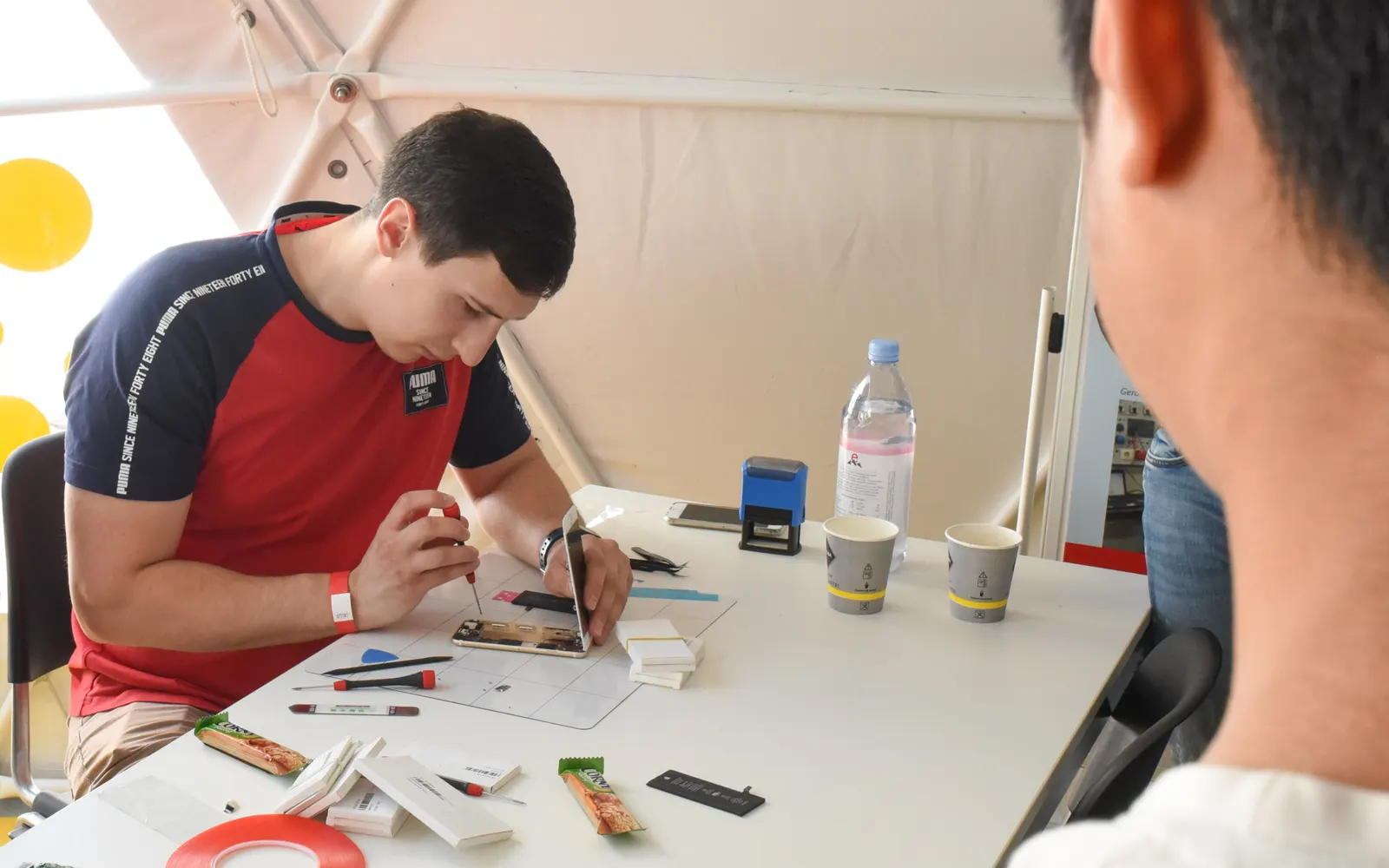
In most of these cases nothing will have changed. The checks below take a few minutes and tell you what is set now. If the phone was at a repair shop, Phone back from repair? Check it in five minutes is the short version of this guide.
What to check first
Menu names differ between phone makers and Android versions. If you cannot find a screen, open Settings and use the search bar.
- New or unfamiliar apps. Open Settings › Apps and sort or scroll the list. Look for apps you do not recognise, including ones that do not appear on your home screen.
- Accessibility access. Search Settings for Accessibility. An app with this access can read what is on screen and tap for you.
- Notification access. Search Settings for Notification access. An app with this access can read message previews and login codes.
- Device admin apps. Search Settings for Device admin apps. A device admin app is harder to uninstall.
- Install unknown apps. Look at Settings › Apps › Special app access › Install unknown apps for apps allowed to install other apps.
- Keyboard. Search Settings for On-screen keyboard or Keyboard. A keyboard sees everything you type, including passwords.
- Screen lock. Check that a screen lock is still set, and change your PIN if someone else learned it.
- Developer options and USB debugging. If Developer options is now shown, check that USB debugging is off unless you use it.
- Accounts. Search Settings for Accounts and check that no account was added. In your Google Account, review Manage all devices.
If you find something you did not set, note what it is and when you noticed it before you decide what to do.
Before you hand your phone over
When you know in advance that someone will have your phone, a few steps limit what they can reach. Menu names differ between phone makers.
- Back up first. Especially before a repair, back up photos, contacts and anything else you want to keep.
- Use app pinning for a quick lend. Android’s App pinning (search Settings for it) keeps the phone on one app until it is unlocked again. It suits handing someone your phone to make a call or look at a photo.
- Ask about a repair mode. Some phone makers offer a repair or maintenance mode that hides your data while the phone is being serviced. Check your phone maker’s help pages.
- Change your PIN afterwards if you had to share it.
- Note the date. If something changes later, knowing when the phone was out of your hands helps.
Next time: take a snapshot first
Phone back check is an Applore Pro feature. Before you hand your phone over, you take a snapshot. When you get it back, you tap Check my phone, and Applore compares the two moments and lists what changed, most serious first. It can show:
- new, removed, replaced, updated or reinstalled apps, and whether a new app came from an app store;
- an app that was given accessibility access, notification access or device admin rights;
- a different keyboard;
- a removed screen lock;
- developer options or USB debugging turned on.
The snapshot and the comparison stay on your phone and are never uploaded. Only take a new snapshot while the phone is in your hands, because anything changed before a new snapshot will not show up in the next check. The privacy policy describes what the snapshot contains.
How to check with Applore
These tools are free in both Applore Free and Applore Pro, and safety screens show no ads:
- Safety Check walks you through the settings above, plus Google account, Maps, Photos, Gmail and WhatsApp settings. It opens each screen and lets you mark it as checked. See the Android phone safety checklist.
- Suspicious App Checker compares installed apps with a reviewed list of known stalkerware, and flags apps that need your review, such as a sideloaded app with a hidden icon and accessibility access. Each flagged app shows a level:
Known monitoring appHighWorth a lookNot flagged
- Quick exit leaves Applore in one tap and removes it from Recents.
How to check an Android phone for spyware and stalkerware walks through the checks step by step, and how detection works explains each signal.
What Applore cannot do
The snapshot check compares two moments in time. It cannot see everything an app does, and it will not catch every kind of monitoring. A difference is information, not proof that someone did something, and no difference does not prove nothing happened. If a change listed is one you did not make, review it.
Get support
If what you find worries you, a support service can help you decide what to do next. Before removing any app, read before you remove a suspicious app: removal can alert the person who installed it and deletes evidence you may want later. Applore includes support contacts for India, the United States and the United Kingdom, plus global options; see domestic abuse and cyber crime hotlines. If you are in immediate danger, contact your local emergency number.
More guides are on the safety guides page.
Questions
Can a repair shop install something on my phone?
Anyone who has your phone unlocked can install an app or change a setting, and a repair often needs the phone unlocked. That does not mean anything was installed. Before a repair, back up your phone and check whether your phone maker offers a repair or maintenance mode. Afterwards, review new apps and special access as described on this page.
Is the snapshot check free?
No. The snapshot check, Phone back check in the app, is part of Applore Pro. Free users can see what it does and upgrade from that screen. The check for known stalkerware (Suspicious App Checker), Safety Check, the support hotlines and Quick exit stay free in both versions and show no ads. Compare Free and Pro.
What if I did not take a snapshot before?
A snapshot can only show changes made after it was saved, so it cannot tell you what happened earlier. You can still review the phone by hand using the list on this page, run Safety Check, and run the Suspicious App Checker. Take a snapshot now while the phone is in your hands, so you can compare next time.
Sources
- See devices with account access, Google Account Help. Checked 2026-09-15.
- Download apps to your Pixel phone (Install unknown apps), Pixel Phone Help. Checked 2026-09-15.
- Information for survivors, Coalition Against Stalkerware. Checked 2026-09-15.
- Stalkerware indicators, Echap (CC BY 4.0). Checked 2026-09-15.
Next steps
Check your phone with Applore
A free check for known stalkerware, a guided Safety Check and a Quick exit. No ads on safety screens.