Suspicious App Checker: a free check for known stalkerware and harmful apps
A free stalkerware check for Android. The Suspicious App Checker compares the apps on your phone with a reviewed, signed list of known stalkerware and harmful apps, and flags apps that behave like hidden monitoring apps or copy a popular app. It runs on your phone, shows no ads, and tells you what it cannot see.
Free on Google Play · Android 8.0 and up
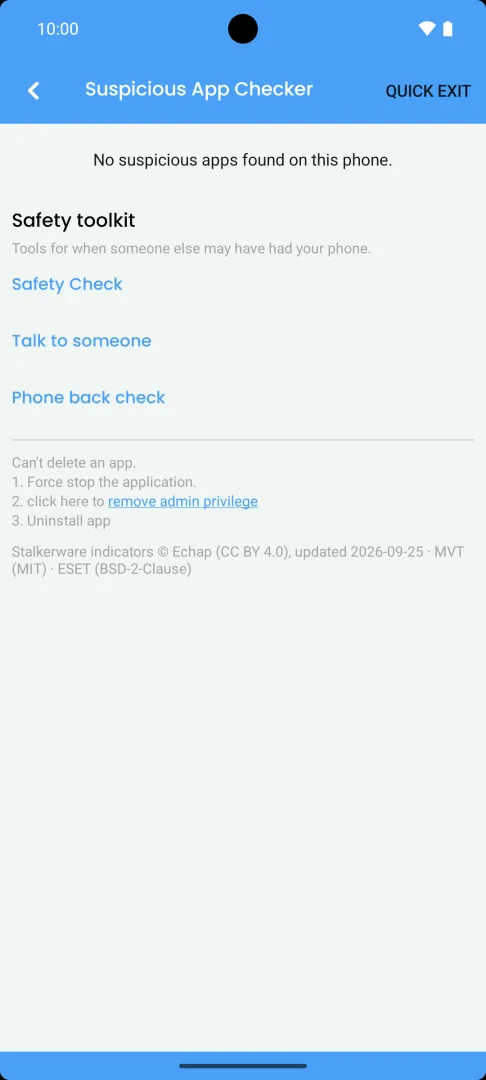
What the Suspicious App Checker does
The Suspicious App Checker is Applore’s free stalkerware check for Android. It looks at the apps installed on your phone in several ways.
- It checks for known stalkerware and harmful apps. Applore compares each app’s package name, signing certificate and file fingerprint with a reviewed threat list. The list combines public indicators from Echap (stalkerware and monitoring apps), the Mobile Verification Toolkit project (commercial spyware) and ESET (harmful Android apps). Each update is reviewed and published by hand. Applore checks for a new signed list about once a day and rejects any file whose signature does not match.
- It never flags a harmful app by name alone. Known harmful apps are matched by signing certificate or exact file, so a genuine app that shares a name with a fake one is not flagged. The file fingerprints are worked out on your phone.
- It recognises known stalkerware under a new name. Some stalkerware comes back under a new package and signing key. While it keeps its product name, Applore still recognises it and shows both the product name and the name it uses on your phone.
- It shows what Google Play Protect reports. If Google Play Protect is on, Applore also lists the installed apps Play Protect reports as harmful, and says the finding comes from Play Protect. If Play Protect is off or not available, this part is skipped.
- It flags apps that behave like hidden monitoring apps. An app installed from outside an app store that hides its icon, or that has accessibility, notification or device admin access, is flagged for your review. So is an app from outside a store that can use at least four of microphone, camera, location, messages, call history and contacts and is set to keep running and start with the phone. A name that looks like a system app counts as a warning sign too.
- It flags copies of popular apps. An app from outside an app store that uses the name or package of a popular app but is not signed by its publisher is listed for you to check. It covers about 50 popular apps. A modified copy on its own is Worth a look. It reaches High only if it also hides its icon or has accessibility, notification or device admin access.
- It keeps monitoring apps separate from stalkerware. Family, parental control and employee tracking apps from an app store are labelled monitoring apps, not spyware. Apps from an app store stay at Worth a look at most unless they match the list or Play Protect reports them.
- It shows why an app was flagged. Each flagged app has a plain-language explanation: what it can see or do, where it came from, when it was installed and whether it is hidden.
- It keeps a separate list of apps removed from Google Play. Apps Google removed for policy reasons, such as adware or fraud, appear under Removed from Play. That list is not a spyware check and does not count towards the Suspicious App Checker.
If you install an antivirus test app to try Applore, it is flagged as a harmless test threat, so you can see that the check works.
What the levels mean
Each flagged app gets one of these warning levels. They describe how strong the signs are, not what an app has actually done.
- Known monitoring app The app matches known stalkerware on the threat list, by package name, signing certificate, file fingerprint or, for an app from outside a store that can use sensitive access, its product name. This is the strongest sign.
- High The app shows strong signs: it was installed from outside an app store with a hidden icon or powerful access, it matches a known harmful app by certificate or file, or Google Play Protect reports it as harmful. An antivirus test app also shows here, marked as harmless.
- Worth a look The app shows some signs worth checking, such as a modified copy of a popular app. Remote access, automation and call recording tools can look like this too.
- Not flagged Applore found no warning signs for the app.
A Not flagged result does not prove the phone is clean. No single sign proves an app is spying, and you know best who has had access to your phone. If you installed a flagged app yourself and trust it, you can mark it as trusted.
How it works
- The first time you open Applore, a consent screen explains what the check reads. Applore does not read your app list until you allow it.
- Open the Suspicious App Checker from the Security section of the Home screen. It shows Checking your apps… until the first check ends.
- Applore reads information about each installed app on your phone: who installed it, whether its icon is hidden, which special access it has, the permissions it asks for, its signing certificate and its file fingerprint.
- It compares that information with the threat list and scores the warning signs. Nothing about your apps is sent off the phone for this.
- Review each flagged app. Open the details to see why it was flagged, then decide what to do.
Applore also checks again on a schedule. If it finds something serious, it reminds you later, and again, until you act on it. Swiping a reminder away does not clear the finding.
Apps installed by your phone maker’s own firmware, such as region or carrier apps, are treated like app-store installs, so they are not flagged as sideloads.
The check relies on one special permission that Google Play reviews: the ability to see all installed apps. It needs it because stalkerware tries to hide from ordinary app lists. The permissions page explains every permission Applore uses.
What Applore cannot see
Applore also cannot see spying that happens outside apps, such as a shared account, call or message forwarding, or implants in the phone’s system software. This is also why Applore does not claim to protect your phone or block anything. It is a check that flags apps for your review. Read how detection works for the full explanation.
What stays on your phone
The check runs on your phone. Applore downloads the threat list and compares your apps with it on the phone, so it does not look your apps up online. If Google Play Protect is on, Play Protect runs its own checks under Google’s terms. Findings and the apps you mark as trusted stay on the device, and neither your list of apps nor the results go to analytics or advertising services. One separate feature works differently: App Category sends package names to Applore’s server, and only when you open it. See what stays on your phone and the privacy policy.
Safe removal and evidence
When you tap Remove on a flagged app, Applore walks you through five steps: check that you are safe to look now, understand why removing it at once can alert the installer, save a report as a PDF and a data file on the phone, open the support hotlines, and finally remove or trust the app after confirming with your App Lock PIN or pattern. Nothing is uploaded: you choose where the report goes through Android’s share sheet.
Our guide before you remove a suspicious app goes through each step in more detail.
Free and Pro
The Suspicious App Checker is free in Applore Free and Applore Pro, including threat-list updates, and the safety screens show no ads in either. Applore Free shows ads outside the safety screens. Compare Free and Pro.
Good to know
- The check looks at apps. It does not read your messages, and it cannot see what an app has done.
- Many normal apps are installed from outside an app store or use accessibility access. A flag is a reason to look, not proof.
- Someone who changed settings on your phone may not have installed an app at all. Safety Check helps you review accounts and settings too.
- Applore’s safety screens are hidden from screenshots and the Recents preview.
- If you want to know what a term means, the glossary explains stalkerware. All our safety guides are in phone safety guides.
Questions
Does Applore find every spy app?
No. Applore compares installed apps with a list of known stalkerware and harmful apps and looks for warning signs, such as a hidden icon combined with accessibility or notification access. New or unknown apps, apps in a work profile, another user or Private Space, preinstalled system apps and tools that need a rooted phone may not be detected. A result that finds nothing does not prove the phone is clean, so treat it as one check among several. How detection works.
What does the Suspicious App Checker look at?
Applore looks for known stalkerware, known harmful apps and hidden monitoring apps, for copies of popular apps installed from outside an app store, and for warning signs such as a hidden app icon or access to your notifications, accessibility or screen. It cannot detect every monitoring app, so review anything it flags. How detection works.
Why is a parental control app labelled a monitoring app?
Family, parental control and employee tracking apps can be installed openly and for good reasons, but they can also be misused. When Applore matches one from an app store, it calls it a monitoring app and lists it separately, rather than calling it spyware. If you or your employer installed it knowingly, you can mark it as trusted. Monitoring apps and stalkerware.
Does the check send my list of apps anywhere?
No. The check runs on your phone, and findings and your trust list are stored only on the device. Checking for threat-list updates downloads a file and sends nothing about your apps. The list of installed apps is not sent to analytics or advertisers. One separate feature, App Category, sends app package names to Applore's server to sort apps into categories, and only when you open it. Privacy policy.
What should I do if an app is flagged?
Take your time. Removing a monitoring app can alert the person who installed it, so think about your safety first. Tap Remove to see five steps: check you are safe to look now, why not to remove it straight away, save a report, talk to someone, then remove or trust the app. Before you remove a suspicious app.
Sources
- Stalkerware indicators, Echap. Checked 2026-09-15.
- Creative Commons Attribution 4.0 International (CC BY 4.0), Creative Commons. Checked 2026-09-15.
Related
Check your phone with Applore
Manage apps and files, lock private apps, and check for known stalkerware.